
Nginx Server Side Caching
The Nginx Proxy Cache feature improves website performance and reduces backend load by storing generated responses and serving them directly from memory or disk for subsequent requests.
Instead of every visitor triggering PHP and database execution, frequently accessed content can be delivered instantly from cache. This results in:
-
Faster page load times
-
Reduced CPU and database usage
-
Better ability to handle traffic spikes
-
Improved overall user experience
This cache is handled at the server level, so it works even if the application itself has no caching plugin.
Where to Find the Settings
You can manage cache for each website individually from:
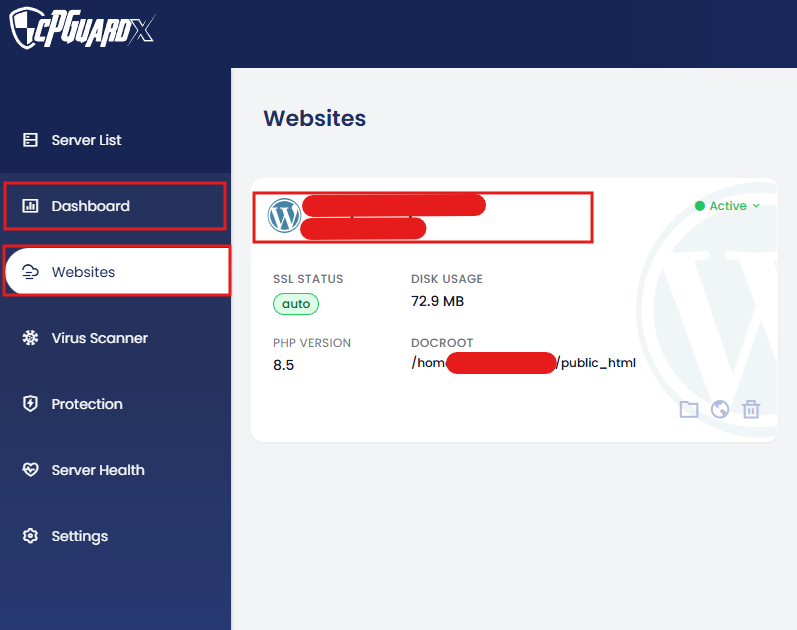
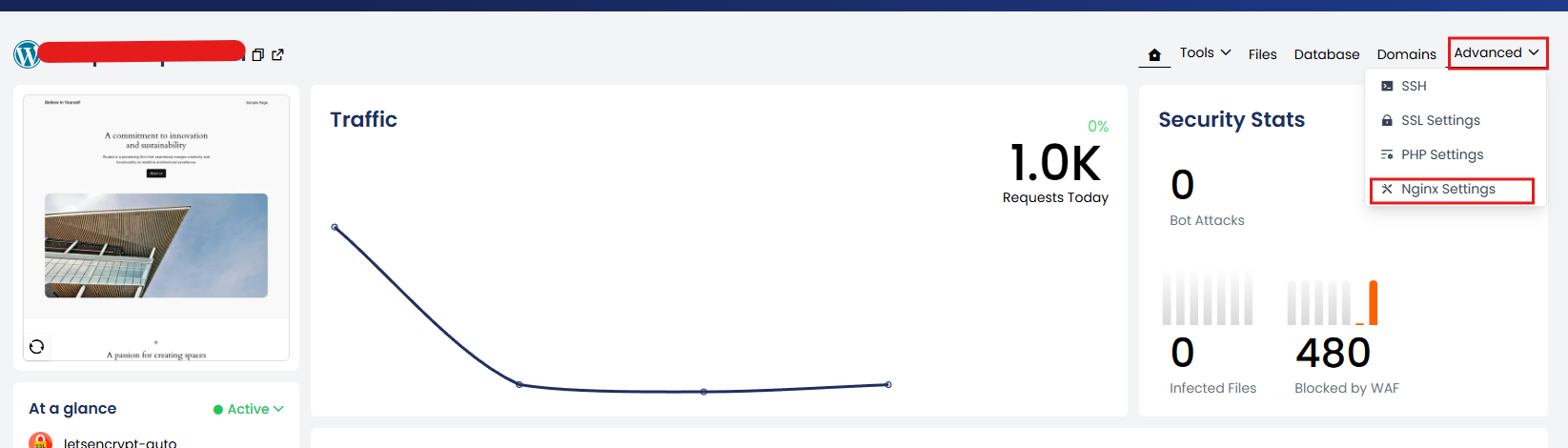
Dashboard → Websites → Select Website → Advanced → Nginx Settings → Server-side Cache
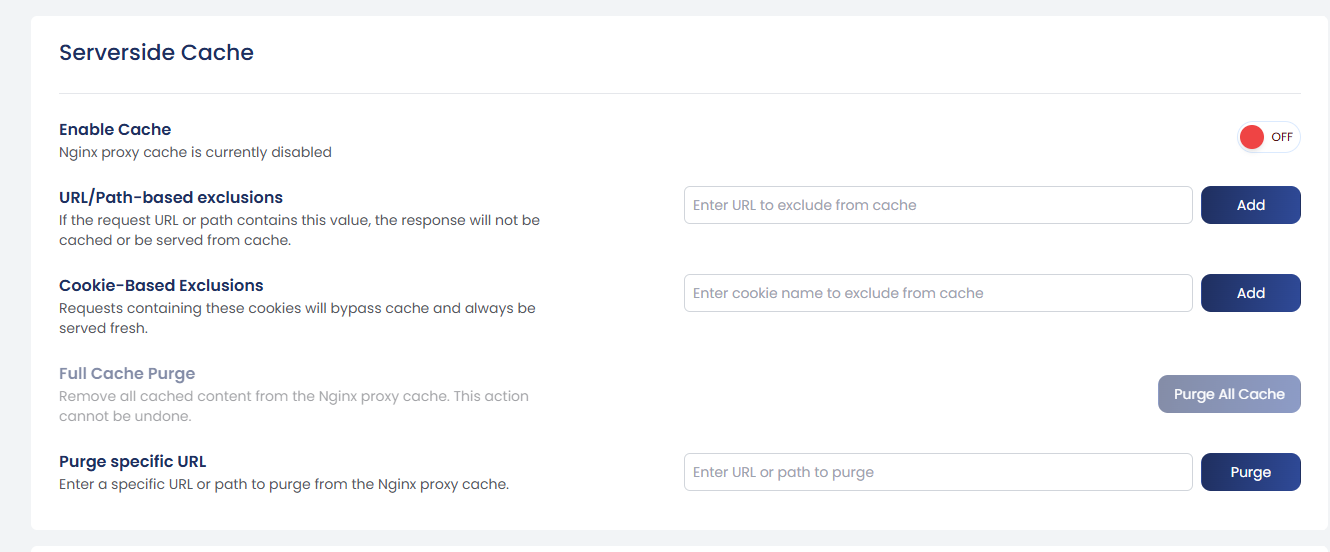
1) Enable Cache
Turns the Nginx proxy cache on or off for the selected website.
Options:
-
ON – Responses are cached and served when eligible.
-
OFF – Every request goes to the backend (no caching).
When disabled, exclusions and purge options have no effect.
2) URL / Path-Based Exclusions
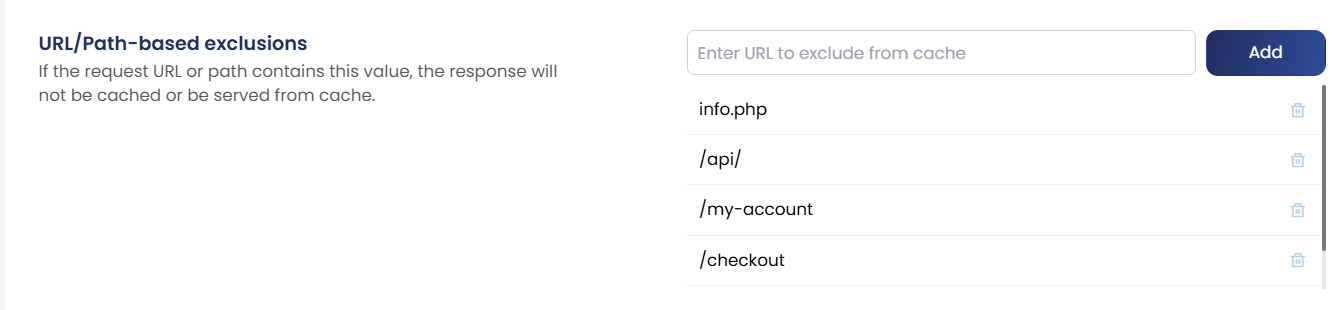
If a request contains the defined URL fragment or path, caching will be skipped.
Use this for dynamic or sensitive pages such as:
-
/cart -
/checkout -
/my-account -
/api/
Example:
If /checkout is added, any URL containing /checkout will always be served fresh.
To prevent accidental caching of sensitive areas, the system automatically excludes common administrative and login locations.
For WordPress websites, the following are already bypassed by default:
-
/wp-admin/ -
/wp-login.php
You do not need to add these paths manually.
3) Cookie-Based Exclusions
Requests containing specific cookies will bypass cache.
This is useful for logged-in users, sessions, or personalized content.
When these cookies are present, Nginx will not serve cached content.
4) Full Cache Purge
Deletes all cached files for the website.
⚠️ This action cannot be undone.
Use when:
-
Major site updates are deployed
-
Theme/design changes
-
Global content modifications
After purge, the first visitor rebuilds the cache.
5) Purge Specific URL
Removes cache only for the given page or path instead of wiping everything.
Example:
-
/blog/new-post -
/pricing
Best for:
-
Editing a single article
-
Updating one product
-
Small targeted changes