
Whitelisting IP address
The option to whitelist an IP address or an IP segment will allow you to avoid blocking known IPs in cPGuard even if it detects abuse. The whitelist will avoid blocking IPs through the IPDB firewall and brute-force attack mitigation script. Please note that the WAF does not respect IP whitelist as it will affect the web server performance.
How to whitelist IP
You can whitelist a single IP address or an IP segment using App Portal or CLI. The allowed IP address format for the whitelist are given below
1.1.1.1 – To whitelist single IP address
1.1.1.0/24 – to whitelist a network segment
To whitelist an IP address from the App Portal, navigate to Server → Protection → Firewall → Whitelist. Enter the IP address in the provided input field, optionally add a comment as the reason, and then click Allow.
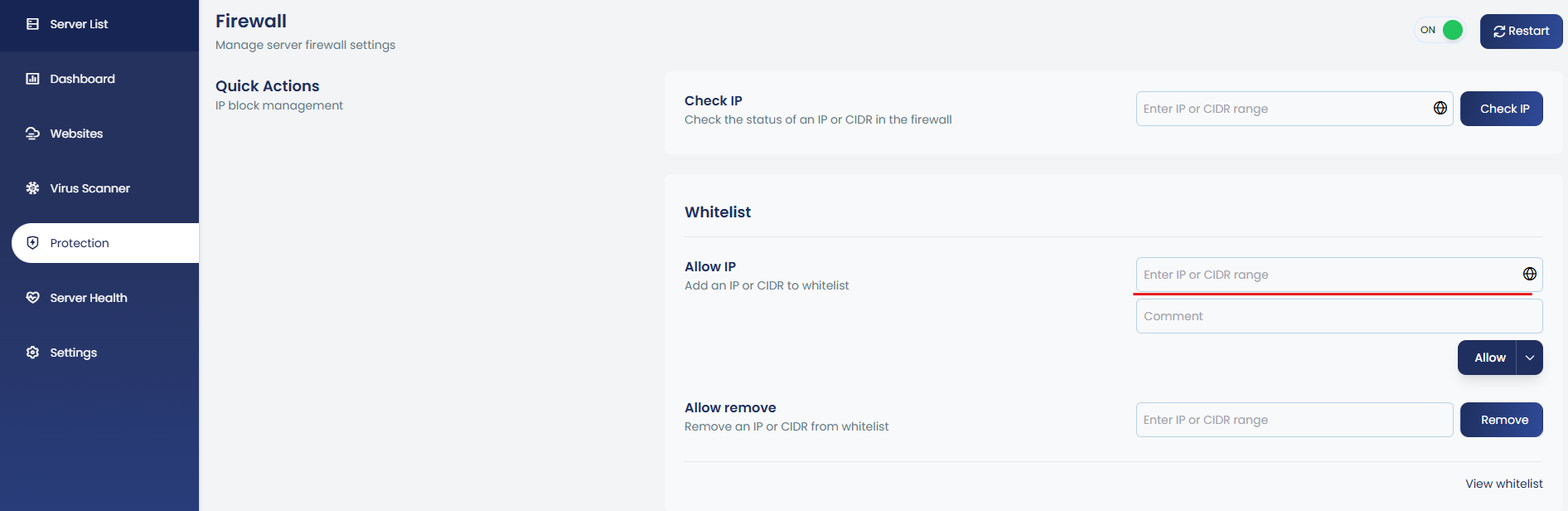
To whitelist using CLI, you can use the following command
cpgcli ip --allow IP --reason 'reason to add'Add IPs and ranges to the whitelist (comma or space-separated).
You can import multiple IPs or IP ranges into the whitelist. This is a one-time import operation, useful when you need to whitelist many IPs or IP ranges at the same time.
cpgcli ip --allow path_to_filepath_to_file = Source file with one entry per line to import IPs/ranges.
Whitelist IPs for Specific Ports (Advanced)
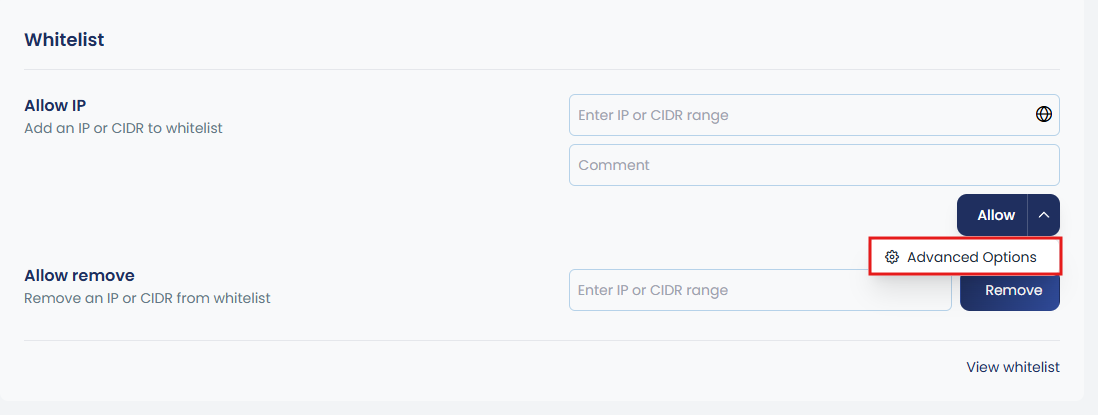
You can whitelist IPs for specific ports by optionally defining the protocol and direction. To do this, click on the ^ symbol next to Allow to expand the advanced options, then configure the required settings.
cpgcli ip --allow IP1 --port 'ports|protocol|direction'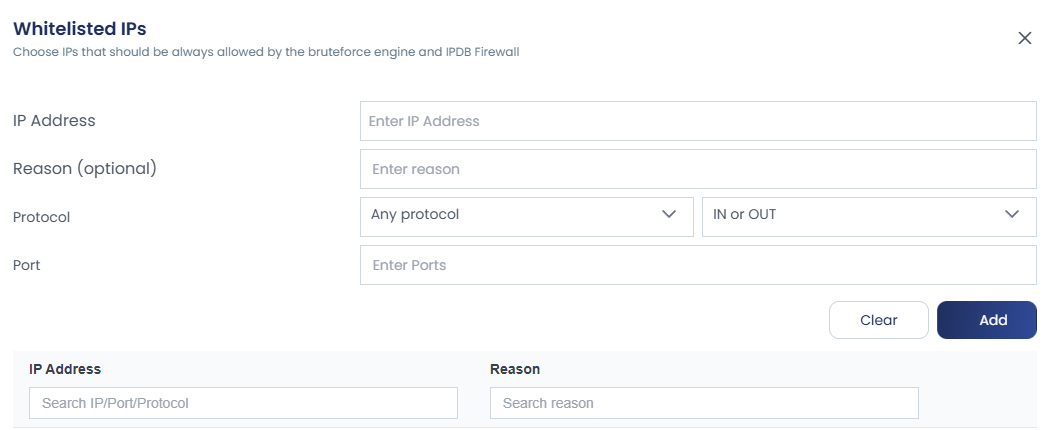
Remove IPs from Whitelist
You can remove IPs from the whitelist by entering the IP address in the Allow Remove input field and then clicking Remove. The CLI option also mentioned below.
cpgcli ip --allow --remove IP1 IP2..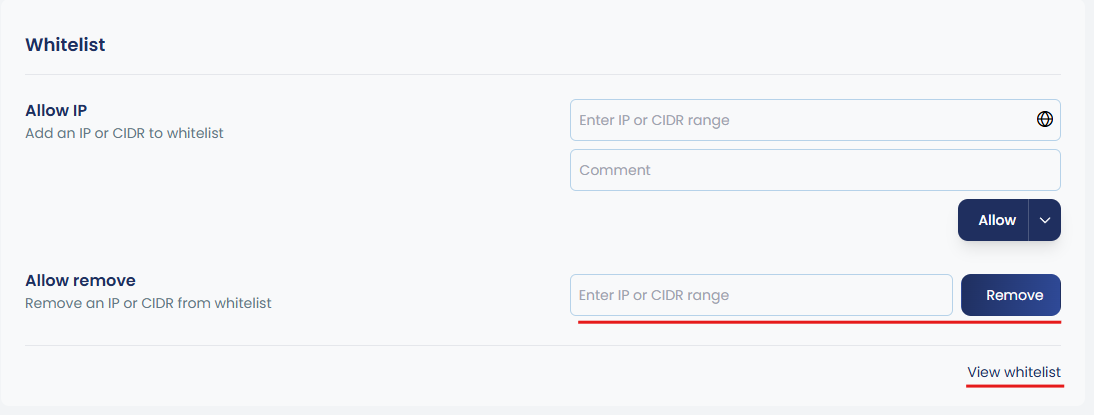
You can view whitelisted entries by clicking View Whitelist as shown in the image.
Alternatively, through the CLI, use the command:
cpgcli ip --allow --listWhitelist IP from Source File
You can manage extended whitelists by importing IPs directly from files. This allows you to add, remove, or list multiple IP addresses in a centralized way, making it easier to maintain large or frequently updated whitelists. The available CLI options are:
cpgcli ip --allow-source path_to_file |
Add IPs from source file to whitelist. |
cpgcli ip --allow-source --remove path_to_file |
Remove source file from whitelist. |
cpgcli ip --allow-source --list |
List all whitelisted source files. |
path_ to_fileThe path can be a local file or a URL.
This option periodically reloads a set of IPs from the specified source. The source file must always be available. It is useful when you need to maintain a centralized or local whitelist that stays updated automatically.
Why you cannot remove an IP address from IPDB?
The IPDB blocklist is a list of IPs with a low reputation that is distributed to all servers from the central system. Our system will collect the incident reports related to attacks and analyze the source IPs frequently to build this list. So the blocklist is frequently reviewed, rebuild, and distributed to all servers periodically. So the block list in IPDB is a dynamic list that will change every time IPDB reloads the list of blocked IPs ( happens every 2 hours on each server).
That said, even if you remove the IP address from the block list, it may appear again while IPDB reloads the block list. That is why we recommend whitelisting the IP address that you wish to remove from the IPDB block list. So when you whitelist an IP address, that IP address will constantly exclude from the IPDB block list. So that is the reason you are advised to whitelist an IP address to remove it from the IPDB blocking.