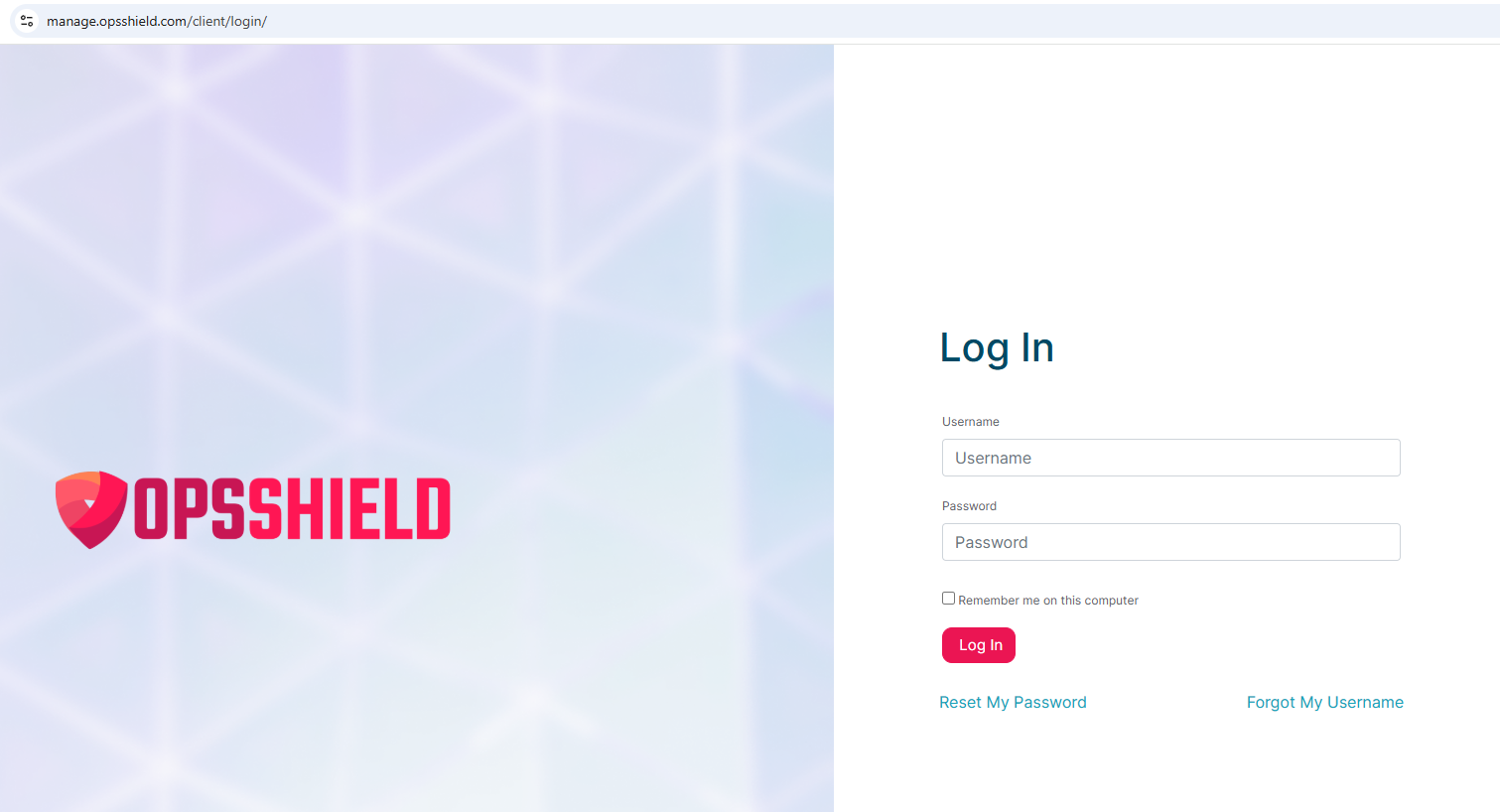
The Single Sign-On (SSO) feature in the cPGuard Admin Plugin allows administrators to securely access the cPGuard interface directly from the hosting control panel without entering separate login credentials.
SSO (Single Sign-On) allows a trusted control panel session to authenticate into cPGuard automatically. When an administrator clicks the cPGuard option inside the control panel, they are logged in without needing to enter a username or password again.
SSO authentication is validated at the server level and respects control panel permission boundaries.
Where is SSO Available?
The SSO feature in the cPGuard Admin Plugin is available on:
- cPanel / WHM
- DirectAdmin
- Webuzo
How to Control SSO (CLI)
SSO can be enabled or disabled using the cPGuard command-line interface (CLI).
CLI for enabling SSO:
cpgcli panel-integration --admin-sso enableWhat Happens When SSO Is Enabled
-
A client or admin logs in to their hosting control panel
(cPanel / DirectAdmin / Webuzo) -
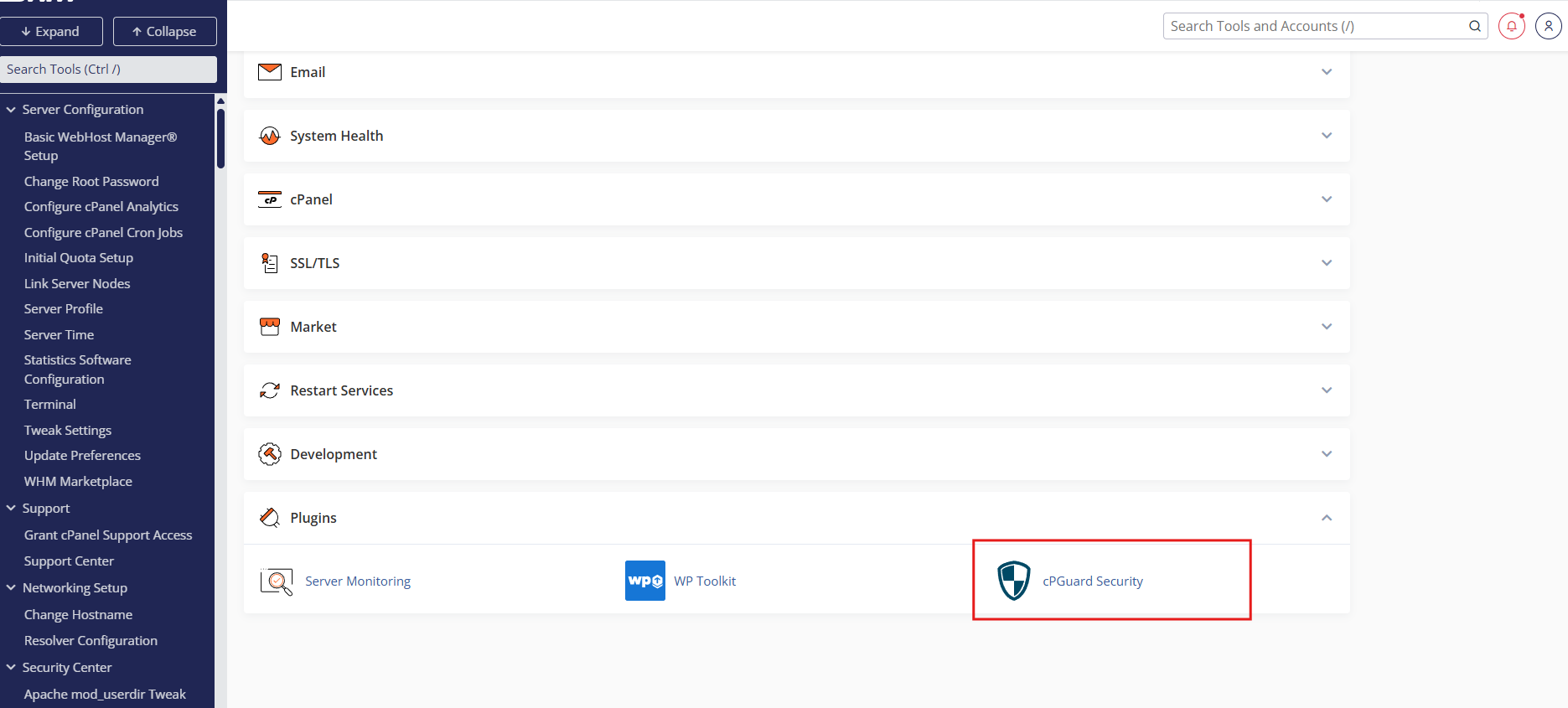
They click the cPGuard Security option inside the control panel
(Example: cPanel → click cPGuard icon — Image 1)
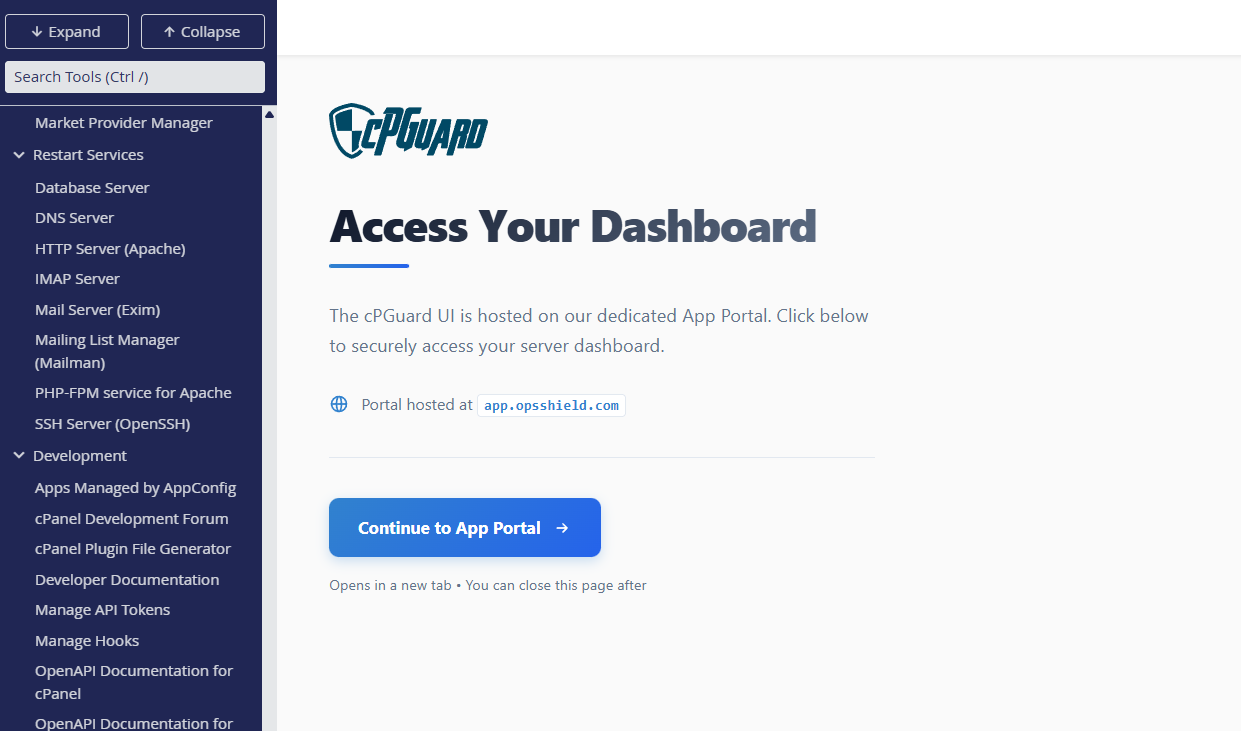
- They are redirected to a page showing:(image2)
Continue to App Portal
After clicking Continue to App Portal, a window is displayed showing:
Please wait, redirecting to cPGuard…

The user is then automatically logged in to the cPGuard App Portal.
-
No username or password is required
-
Authentication is handled via the existing control panel session
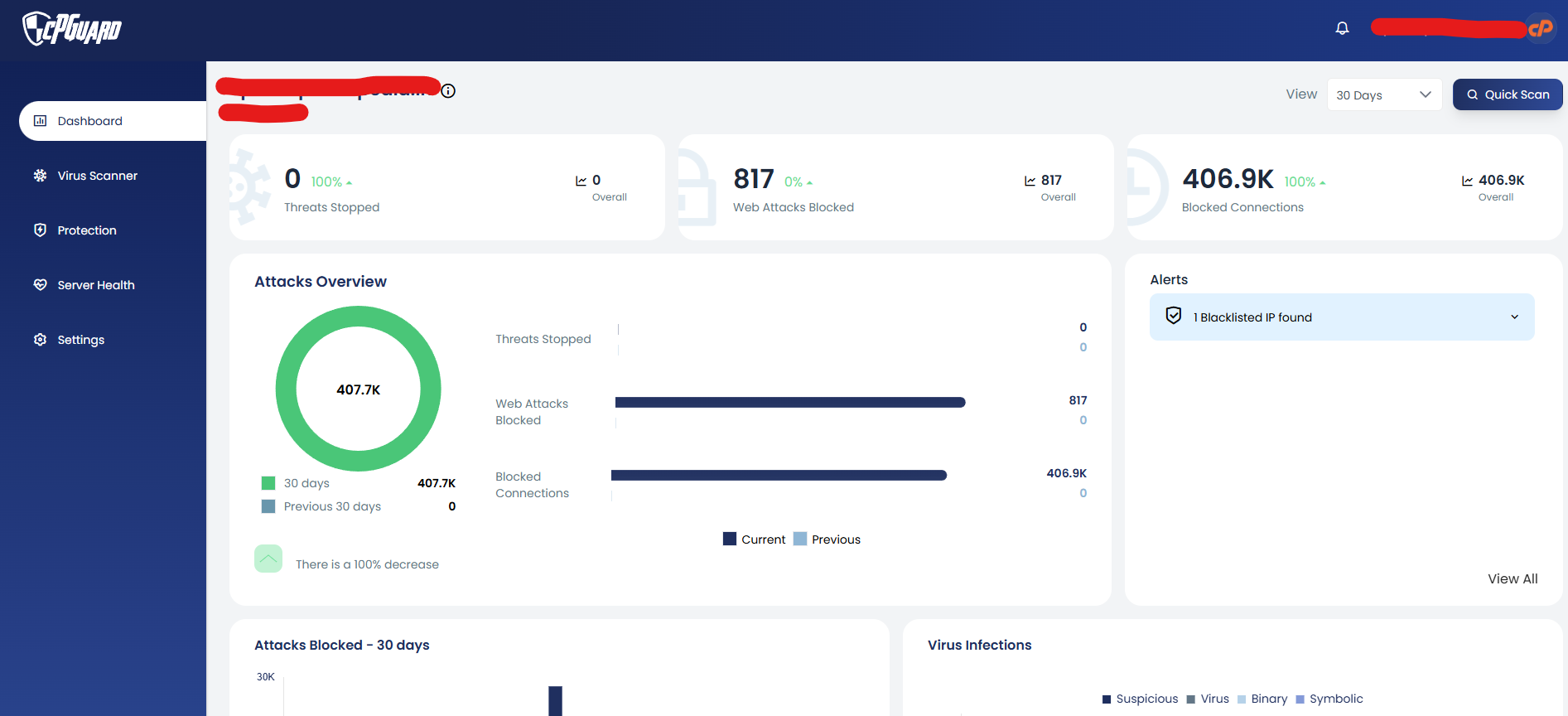
Access Scope
- The user can access only the dashboard of the server they came from
- They cannot view or manage other servers
- No global server list is shown
- Only the current hosted server can be viewed and managed
- This provides convenient but restricted access, making it safe for client-level usage.
CLI for disabling SSO:
cpgcli panel-integration --admin-sso disableWhen SSO is disabled
Clicking cPGuard Security in cPanel redirects the user to a page showing:
Continue to App Portal
After clicking Continue to App Portal, the user is redirected to the cPGuard App Portal.
Since SSO is disabled, manual authentication is required. The user is prompted to enter:
-
App Portal username
-
App Portal password