
Outgoing Spam Monitor (OSM) is a security feature designed to detect and prevent spam emails originating from your server.
It continuously monitors outgoing email activity and helps identify:
-
Compromised email accounts
-
Malicious scripts sending spam
-
Unusual email sending patterns
By proactively detecting such behavior, OSM helps protect your server from:
-
Email abuse
-
IP blacklisting
-
Reputation damage
Control Panels Support cPGuard OSM
-
cPanel
-
Directadmin
- Webuzo
How to Enable OSM
By default, OSM is disabled.
To enable it go to:
Once enabled, OSM will start monitoring outgoing email activity in real-time.
Viewing OSM Logs
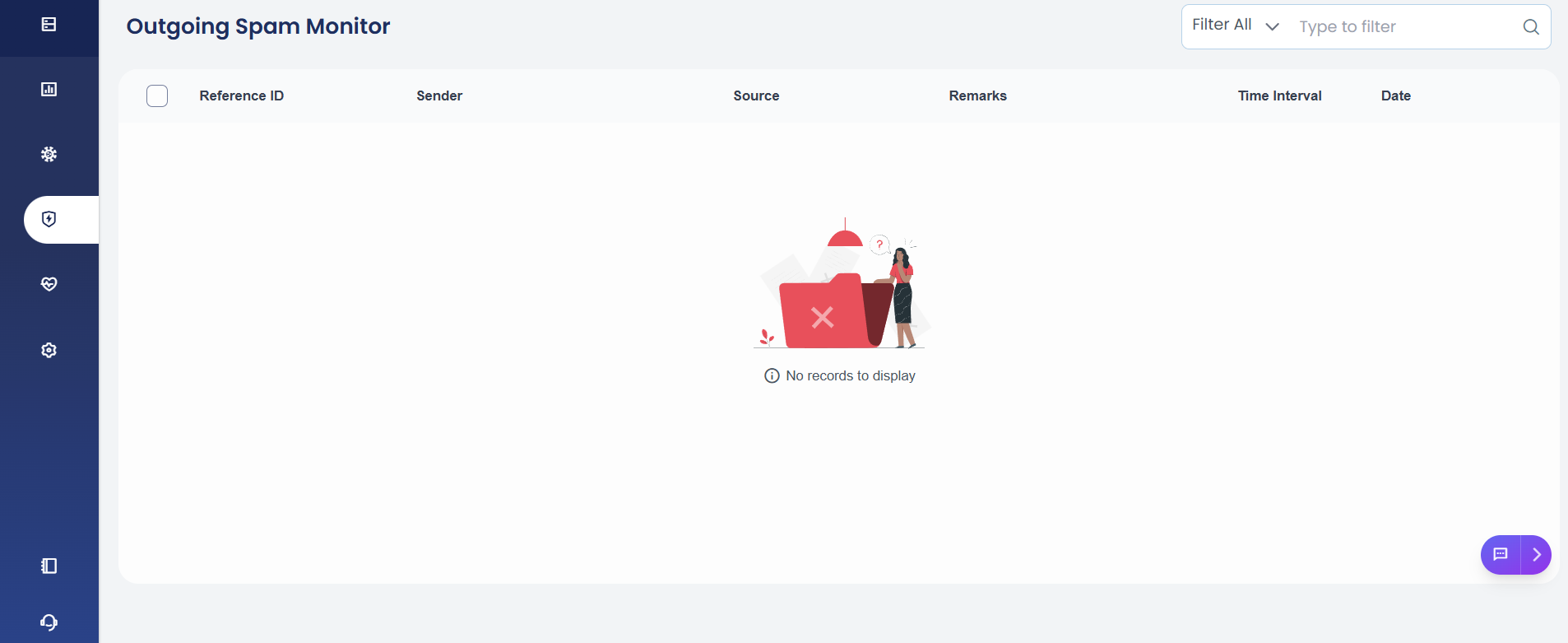
You can easily monitor Outgoing Spam Monitor (OSM) activity and review any detections by navigating to:
Protection → OSM
Here, you will find detailed logs showing which users or domains triggered thresholds, along with timestamps and email counts, source, helping you quickly investigate and respond to potential spam activity.
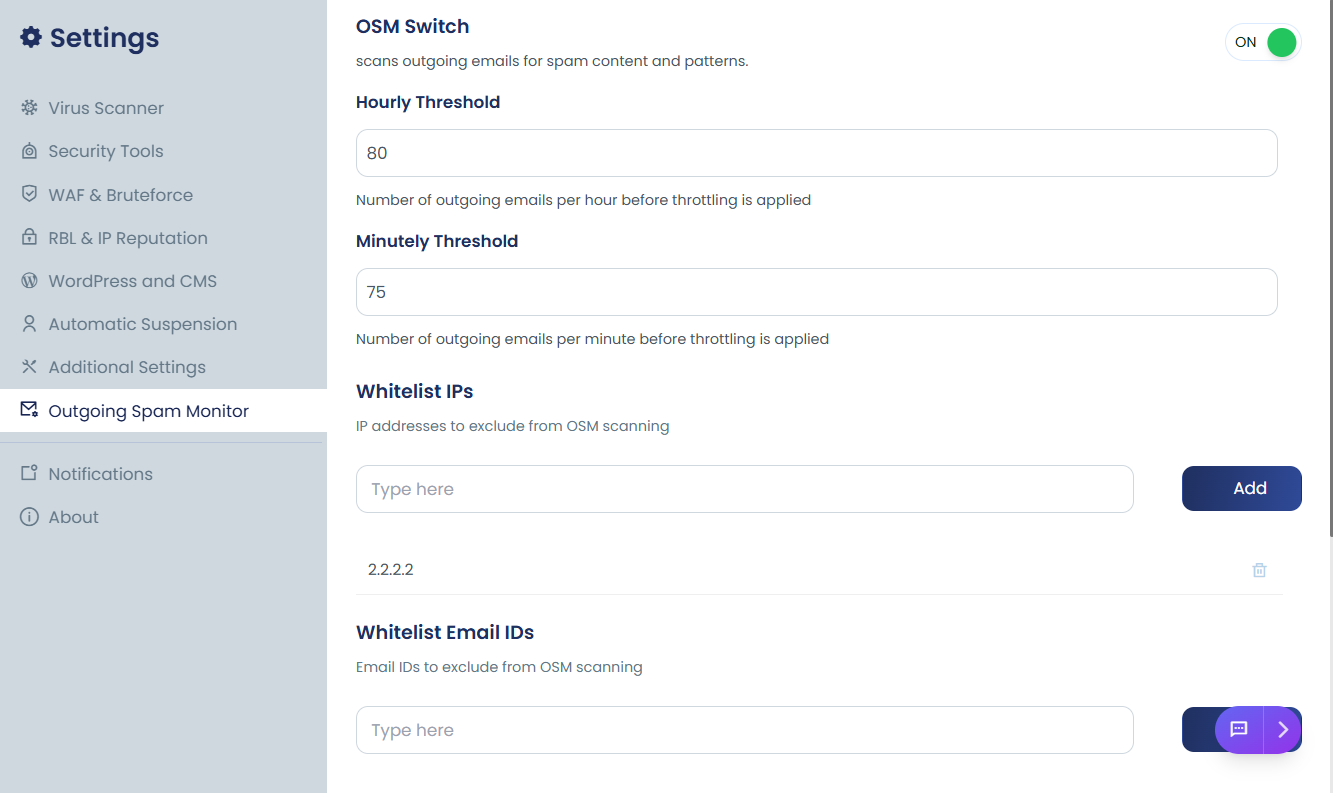
OSM configuration options
Below are the most important OSM settings typically available:
Hourly Threshold
The Hourly Threshold helps protect your server’s reputation by limiting the number of emails can send within one hour. This is especially useful to quickly detect and stop compromised accounts sending bulk spam.
The Hourly Threshold defines the maximum number of emails allowed per hour per email address or CWD path.
If the limit is exceeded alerts are triggered to notify administrators and details are logged in the OSM logs for review
Minutely Threshold
The Minutely Threshold helps protect your server by limiting the maximum number of emails a domain can send in a single minute. This is useful to quickly catch rapid bursts of outgoing spam before they escalate.
It is useful for detecting:
-
Sudden bursts of spam
-
Script-based mailers
-
Compromised plugins sending mass emails instantly
Minutely limits stop attacks much faster than hourly limits.
Whitelist IPs
Allows specific IP addresses to bypass OSM checks.
Use cases:
-
Trusted external mail servers
-
API-based transactional email systems
-
Internal monitoring systems
This prevents legitimate services from being blocked.
Whitelist Email IDs
Allows specific sender email addresses to bypass spam monitoring rules.
Common examples:
Useful for protecting critical system emails from accidental blocking.
Whitelist CWD Prefixes
CWD (Current Working Directory) prefix whitelisting allows you to exclude specific application paths from OSM restrictions.
For example:
-
/home/user/public_html/whmcs/ -
/home/user/app/cron/
This is helpful for:
-
Billing systems
-
CRM platforms
-
Trusted custom applications
Spam Patterns
This setting checks only the email subject line for known spam keywords or patterns.